
Signage and printing: selling custom work without manual quotes
How a large-format print shop uses Live Quote Builder on PrestaShop to show a live price per square metre and let customers order their banner or panel right away.
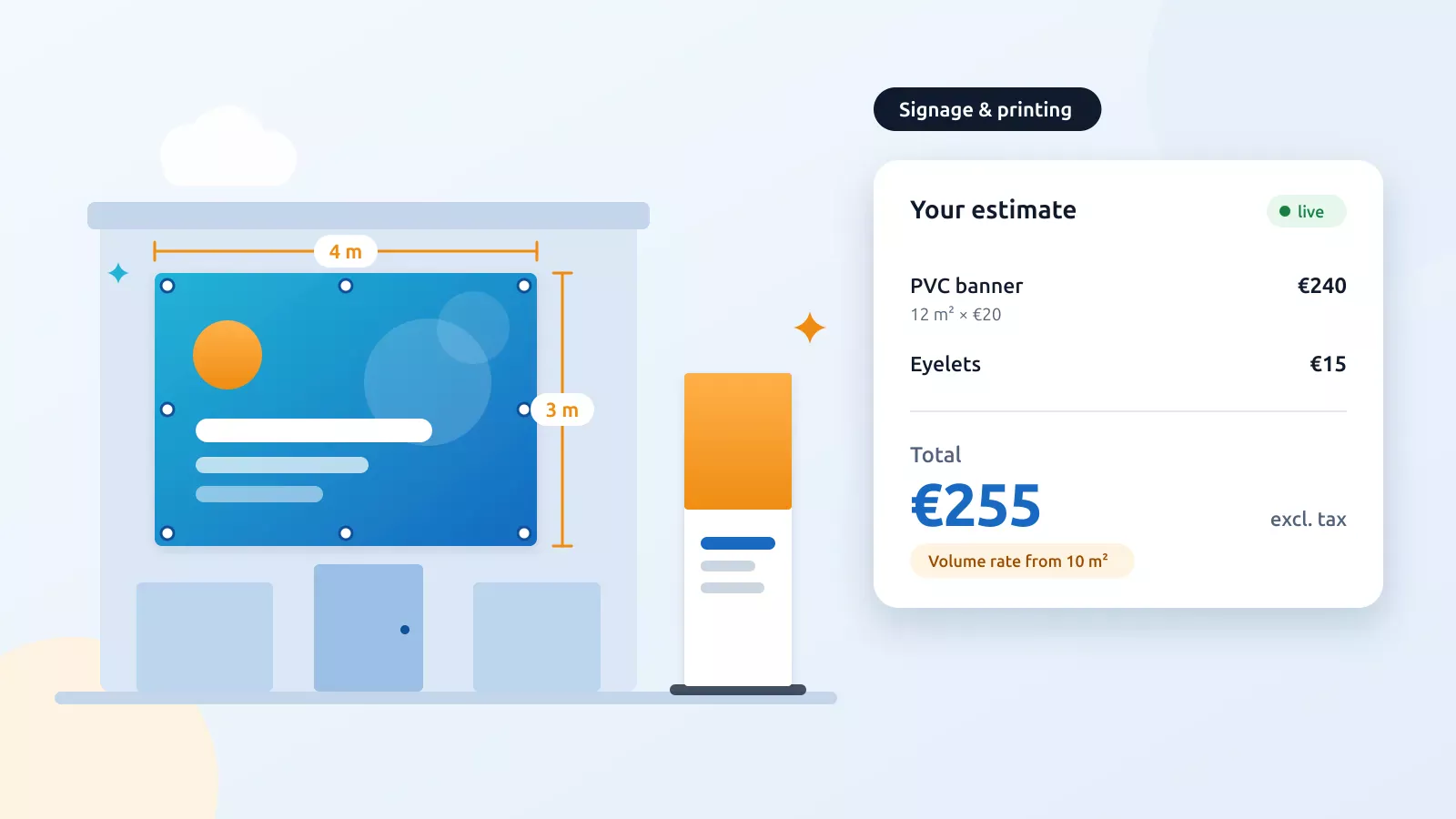
Banners, panels, vinyl stickers, roll-ups: in a large-format print shop, almost everything is sold by the square metre, with a few options. The calculation is simple, but it changes with every order. As a result, most shops show “price on request”, and many visitors leave before writing in.
This first use case shows how to turn that calculation into a form that shows the price live, then let the customer order immediately, without waiting for a reply.
The problem: a simple calculation you always have to redo
For a 4 × 3 m banner, you multiply the area by the material rate, apply a volume discount above a certain area, then add eyelets or lamination. The customer mainly wants to know how much it costs, and often in the evening or at the weekend, when nobody is there to answer.
Every request handled by hand means:
- an email that is often incomplete (“what size exactly? which material?”);
- a calculation redone in a spreadsheet;
- a delay during which the customer compares you with a competitor who shows their price.
The form
In Sell › Quotes › Quote forms, the shop creates a “Large-format printing” form:
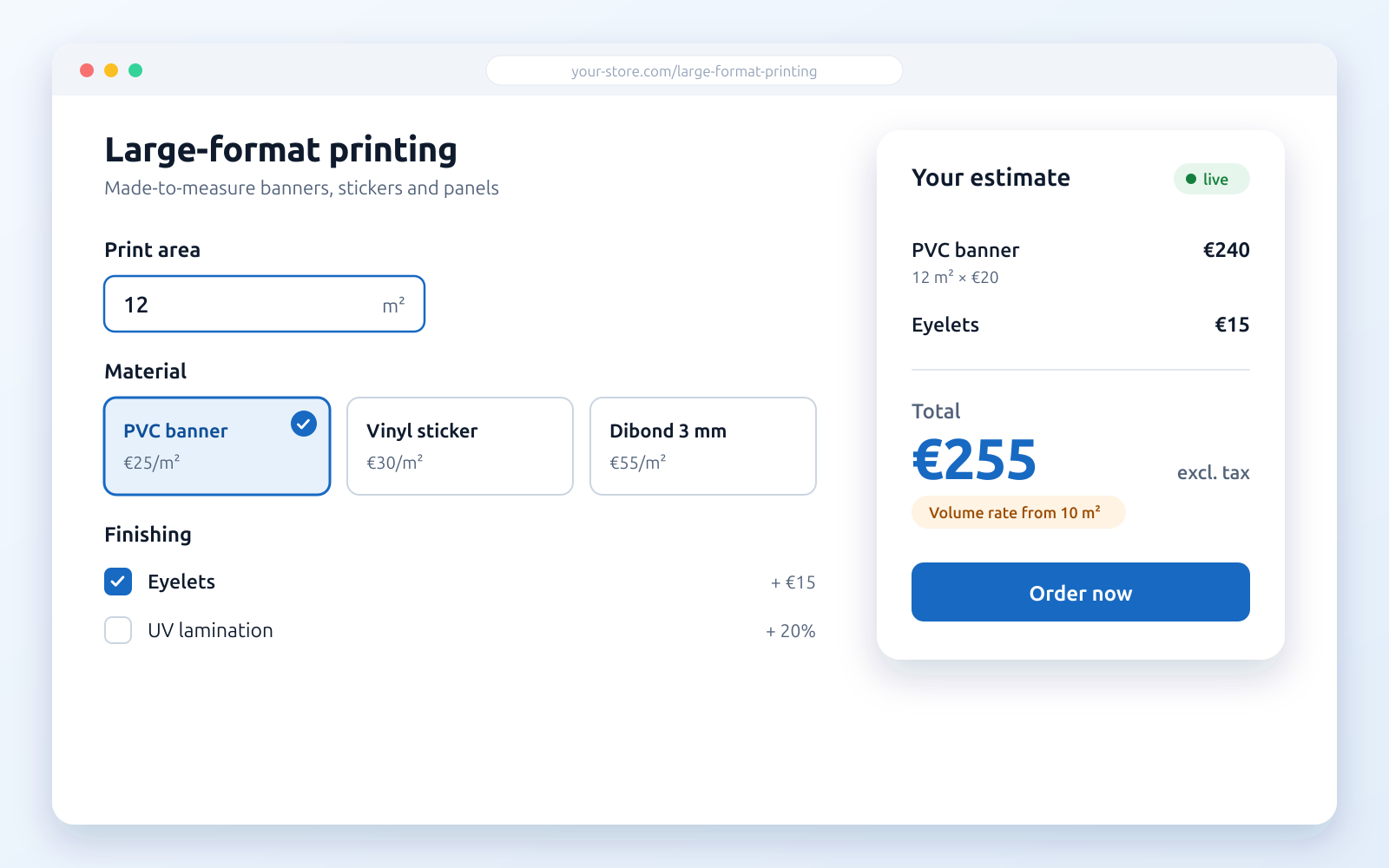
- Print area (Area type, in m²);
- Material (Single choice type, shown as cards): PVC banner at €25/m², vinyl sticker at €30/m², 3 mm Dibond panel at €55/m². The Price × another answer mode multiplies the rate by the area;
- Eyelets (Checkboxes type): + €15, shown only if the chosen material is the banner;
- UV lamination (Checkboxes type): + 20% of the total;
- Notes about the file (Free text type), to mention bleed or a deadline.
The volume discount is a conditional price: “if the area is greater than 10 m², then €20/m² for the banner”. The first matching rule replaces the base price, so there is no need to create one product per price tier.
A minimum amount (say €50 excl. tax) rules out orders too small to be profitable, and rounding keeps prices tidy.
What the customer sees
They enter 12 m², pick the banner and tick the eyelets. The estimate updates with every answer: €240 for the banner (12 m² at €20, thanks to the volume rate), €15 for the eyelets, so €255 excl. tax. The breakdown stays visible next to the form, so they understand where the price comes from.
If they hesitate between two materials, they change their answer and compare in a second. That is exactly what they would have asked by email.
Order right away
For this kind of standardised product, the shop picks the Immediately ordering mode in the Total and ordering panel: as soon as the request is sent, the customer can add their estimate to the cart and pay with the shop’s usual payment methods.
The total is always recalculated on the server: even with a tampered browser, nobody can order a banner for €1.
What about more complex projects?
An illuminated sign or a façade installation is not sold in one click. So the shop creates a second form, “Signage with installation”, shown on the relevant category, with the After validation by the shop mode:
- the customer describes their project and gets a first estimate;
- the shop adjusts the lines (aerial lift, travel), sets a validity date and sends the quote with its PDF;
- the customer orders it online at the exact price, or declines it and says why.
Each form appears where it makes sense: in a product page tab (per product or per category), on a dedicated page, or in a CMS page with a shortcode.
What the shop gains
- Sales outside opening hours: customers no longer wait for a reply to order.
- Fewer qualification emails: area, material and options are in the request.
- One price list applied the same way everywhere, with no calculation errors.
- A single tool for simple orders and for real quote-based projects.
The same approach works for commercial printing (flyers, business cards), custom apparel or made-to-measure material cutting.
All the features are on the module page, and the full flow is shown step by step in the introduction article.